Broadcast Messages (FREE SELF)
GitLab can display broadcast messages to all users of a GitLab instance. There are two types of broadcast messages:
- banners
- notifications
You can style a message's content using the a and br HTML tags. The br tag inserts a line break. The a HTML tag accepts class and style attributes with the following CSS properties:
colorborderbackgroundpaddingmargintext-decoration
Banners
Banners are shown on the top of a page and in Git remote responses.
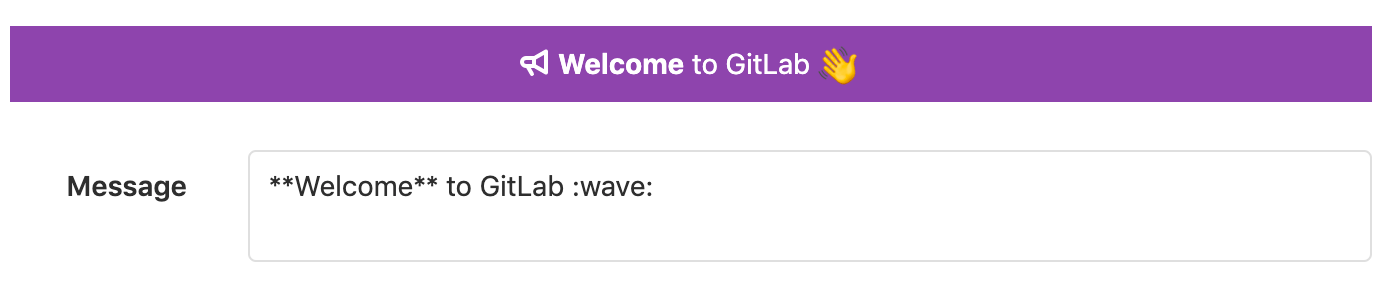
$ git push
...
remote:
remote: **Welcome** to GitLab :wave:
remote:
...
Notifications
Notifications are shown on the bottom right of a page and can contain placeholders. A placeholder is replaced with an attribute of the active user. Placeholders must be surrounded by curly braces, for example {{name}}.
The available placeholders are:
{{email}}{{name}}{{user_id}}{{username}}{{instance_id}}
If the user is not signed in, user related values are empty.
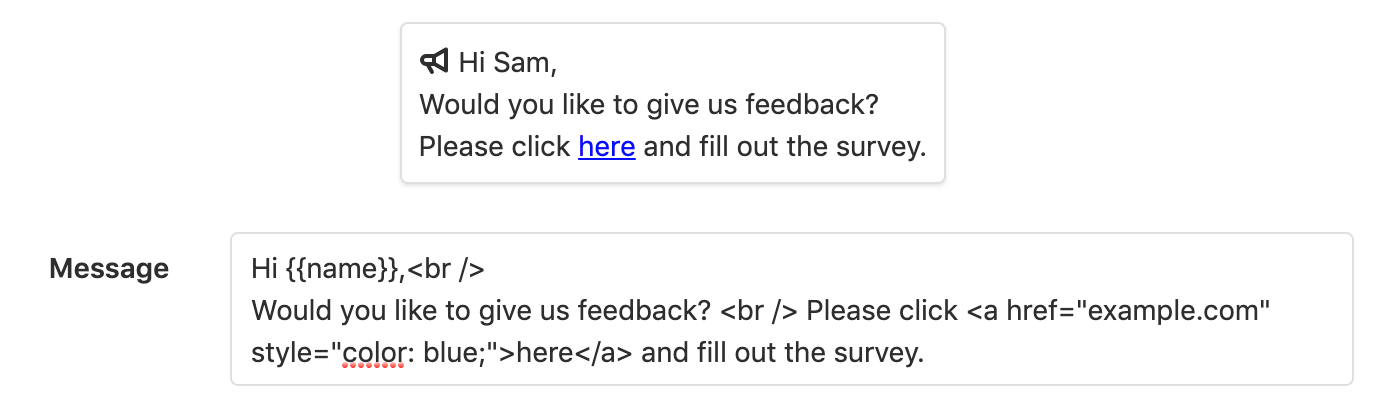
Broadcast messages can be managed using the broadcast messages API.
NOTE: If more than one banner message is active at one time, they are displayed in a stack in order of creation. If more than one notification message is active at one time, only the newest is shown.
Adding a broadcast message
To display messages to users on your GitLab instance, add broadcast message.
To add a broadcast message:
- Navigate to the Admin Area > Messages page.
- Add the text for the message to the Message field. Markdown and emoji are supported.
- Select one of the suggested background colors, or add the hex code of a different color. The default color is orange.
- If required, add a Target Path to only show the broadcast message on URLs matching that path. You can use the wildcard character
*to match multiple URLs, for examplemygroup/myproject*. - Select a date for the message to start and end.
- Click the Add broadcast message button.
NOTE:
When scoping messages, you can't use preceding or trailing slashes. For example,
instead of /mygroup/myproject/, you must use mygroup/myproject. A fix is
planned for GitLab 13.12.
NOTE: The Background color field expects the value to be a hexadecimal code because the form uses the color_field helper method, which generates the proper HTML to render.
NOTE: Once a broadcast message has expired, it is no longer displayed in the UI but is still listed in the list of broadcast messages. User can also dismiss a broadcast message if the option Dismissable is set.
Editing a broadcast message
If changes are required to a broadcast message, they can be edited.
To edit a broadcast message:
- Navigate to the Admin Area > Messages page.
- From the list of broadcast messages, click the appropriate button to edit the message.
- After making the required changes, click the Update broadcast message button.
NOTE: Expired messages can be made active again by changing their end date.
Deleting a broadcast message
Broadcast messages that are no longer required can be deleted.
To delete a broadcast message:
- Navigate to the Admin Area > Messages page.
- From the list of broadcast messages, click the appropriate button to delete the message.
Once deleted, the broadcast message is removed from the list of broadcast messages.
NOTE: Broadcast messages can be deleted while active.